
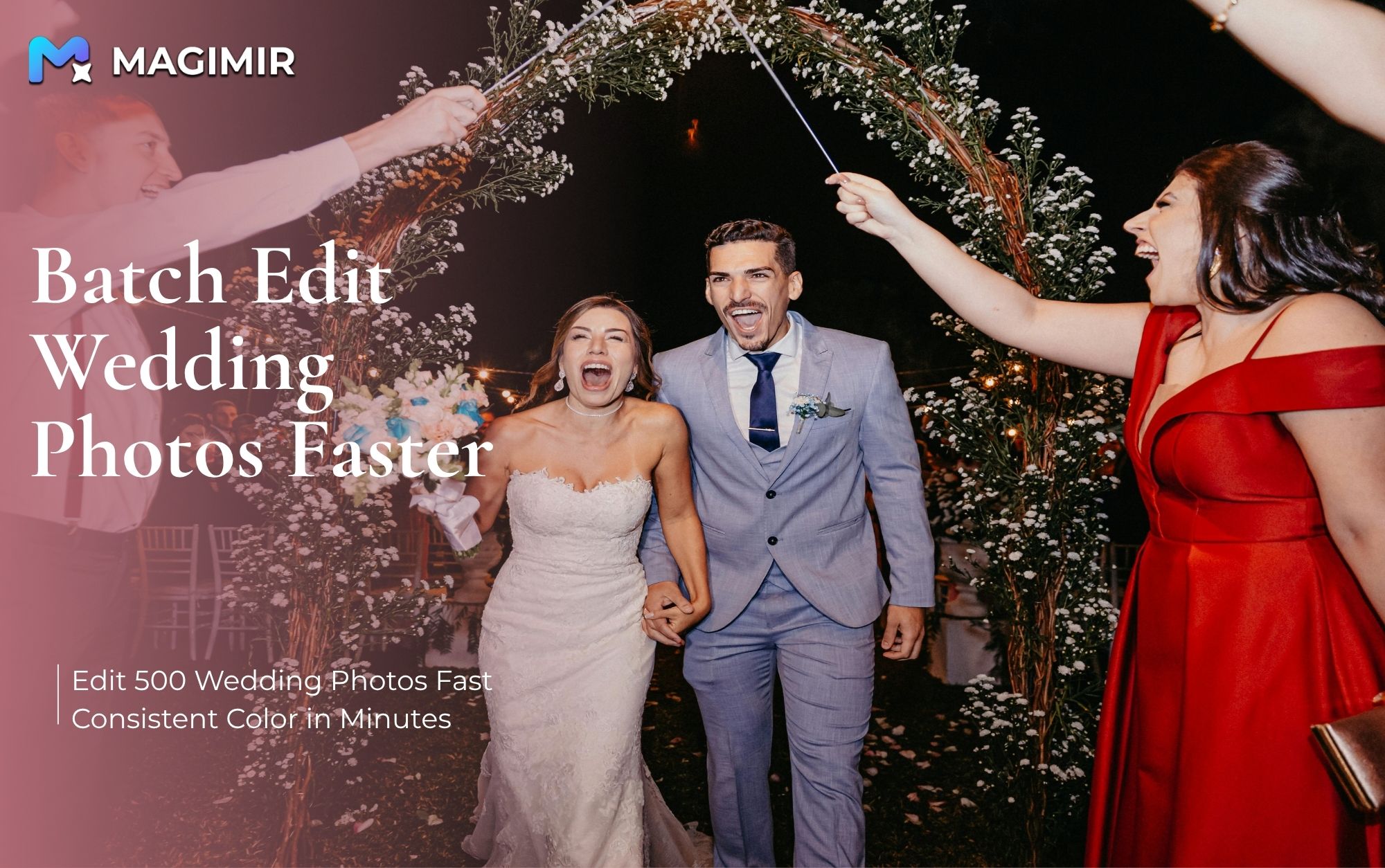
Wedding Photo Editing Workflow: Batch Editing with Presets + AI Color Matching
Wedding photography is one of the most demanding editing workflows.
A single day can produce hundreds of RAW images, often shot across:
- Soft morning light (getting ready)
- Warm indoor lighting (ceremony)
- Natural outdoor light (portraits)
The result? 👉 Mixed color temperatures 👉 Inconsistent tones 👉 Hours of manual correction
Many photographers struggle with the same issues:
- Editing takes too long
- Styles vary between editors
- Clients notice inconsistent tones
- Late-night editing becomes routine
But this doesn’t have to be the case.
With the right workflow — combining presets + AI color matching — you can unify your entire gallery in minutes.
Why Wedding Photographers Need Presets + AI Color Matching
1. Lighting Conditions Change Constantly
From indoor tungsten to outdoor daylight, color balance shifts dramatically.
Manual adjustments make it difficult to keep consistency across the gallery.
2. High Volume Makes Manual Editing Unsustainable
Editing 300–800 images one by one is not scalable.
Batch workflows are no longer optional — they are essential.
3. Clients Expect Consistent Style
Modern wedding clients want:
- Cohesive color tones
- Natural skin rendering
- Premium “film-like” atmosphere
Not a gallery where every photo looks different.
4. Long-Term Efficiency Matters
Once a workflow is built:
- It can be reused
- It reduces editing cost
- It improves delivery speed
Complete Workflow: Presets + AI Color Matching
Step 1 — Import All Wedding Photos
Open Magimir and import your full shoot.
- Supports RAW and JPG
- Import morning, ceremony, and outdoor shots together
- Prepare for batch editing
Step 2 — Apply Wedding Presets (Base Layer)
Use Wedding Presets to establish a consistent foundation.
These presets help:
- Normalize exposure
- Balance color temperature
- Improve skin tone
- Fix dull or flat images
👉 Apply preset to all photos at once 👉 Instantly unify base tone
Suggested Preset Styles
- Soft Morning Tone → for getting ready / indoor soft light
- Warm Ceremony Tone → for indoor mixed lighting
- Natural Outdoor Tone → for garden / outdoor weddings
Step 3 — Use AI Color Matching for Style Consistency
This is where the real transformation happens.
How it works:
1.Choose a reference image (the best-looking photo from the shoot)
2.Upload it into AI Color Matching
3.Let AI analyze: Skin 、toneLighting、Color balance
4.Apply to the entire set
👉 Result:
Unified color tone
Consistent skin rendering
Professional visual style
Step 4 — Batch Apply and Fine-Tune
After applying AI color:
- Sync to all images
- Adjust brightness if needed
- Slightly tweak skin saturation
👉 Keep it minimal 👉 Preserve natural look
Step 5 — Export the Full Gallery
- Batch export all images
- Maintain consistent resolution
- Deliver faster to clients
What used to take hours can now be done in minutes.
Before & After Results
With this workflow:
👉 Flat, gray images → Clean, cinematic tones 👉 Mixed lighting → Unified color style 👉 Inconsistent skin tones → Natural, consistent rendering
Preset vs AI Color Matching: How to Use Both
Understanding the difference is key.
Presets
- Fix base exposure and tone
- Provide quick consistency
- Ideal for bulk correction
AI Color Matching
- Refines style
- Matches high-end reference
- Ensures final consistency
👉 Together:
Preset = foundation AI = refinement
Why This Workflow Works
This approach helps photographers:
- Edit faster
- Maintain consistency
- Reduce manual work
- Deliver higher-quality galleries
Especially during peak season, this can completely change your workflow.
Final Thoughts
Wedding editing doesn’t have to be exhausting.
By combining presets + AI color matching, photographers can:
- Handle large projects efficiently
- Maintain professional quality
- Avoid late-night editing
Once you experience this workflow, it becomes hard to go back.