
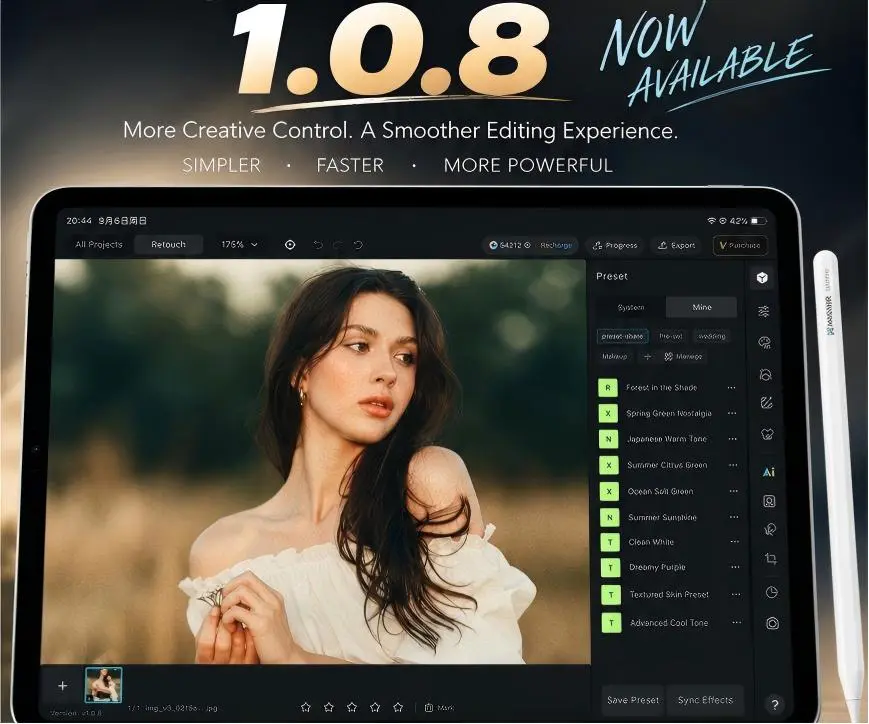
There’s one thing I’ve noticed after editing on an iPad for a while: adding more features isn’t necessarily what makes the experience better.
What really matters is how often you have to stop what you’re doing.
Waiting for photos to import. Jumping between tools. Exporting a project. Managing unwanted shots. Or finding that one small portrait problem that still needs another app to fix.
That’s the kind of friction we focused on with MagiMir Global iPad 1.0.8.
This release adds quite a few new features, but more importantly, it makes the whole process—from importing and shooting to retouching and exporting—feel more complete.
And yes, Sony tethered shooting is now supported on iPad.
Portrait Retouching Feels More Natural in 1.0.8
Portrait work is still where I notice small differences the most.
You can have a technically clean portrait and somehow the skin still doesn’t feel right. Sometimes the tone is slightly off. Sometimes blemish removal cleans too aggressively. Sometimes the eyes need attention, but you really don’t want them to look obviously retouched.
MagiMir iPad 1.0.8 improves two of the areas we use constantly:
Skin Tone has been refined to produce more natural, balanced results.
Blemish Removal has also been improved, with cleaner treatment of imperfections while keeping the portrait believable.
The goal isn’t to make skin look processed.
It’s to get clean, realistic skin that still feels alive.
That difference matters, especially when you’re working through an entire portrait session rather than editing one hero image.
The Eye Retouching Toolkit Is Much More Complete
Eyes are one of those areas where tiny changes can completely change how a portrait feels.
Push them too far and the face immediately starts looking artificial.
Do too little and tired eyes, redness, or small distractions remain noticeable.
MagiMir Global iPad 1.0.8 adds several dedicated eye tools:
- Red-eye removal
- Eye brightening
- Eye highlights
- Double eyelid tape removal
- Eye white enhancement
I’d still use these subtly.
Eye whites don’t need to be white-white, and highlights don’t need to jump out of the screen. Usually the best result is the one where the viewer never realizes anything was retouched.
ID Photo Editing Is Now Available on iPad
Another useful addition is ID Photo.
MagiMir 1.0.8 now supports ID photo workflows with multiple sizes, making it easier to handle standardized portrait requirements directly on iPad.
This might sound like a small addition compared with AI portrait retouching, but for portrait studios and photographers who regularly handle ID photos, it removes another reason to switch devices or applications.
That matters more than it sounds.
Sony Tethered Shooting Comes to MagiMir iPad
This is probably one of the biggest workflow updates in 1.0.8.
MagiMir iPad now supports tethered shooting with Sony cameras, alongside Canon and Nikon support.
So the workflow can become much simpler:
Camera → iPad → Review → Retouch → Export
You can shoot and work with the images directly on the iPad rather than constantly moving between the camera, computer, and other devices.
For studio portraits, commercial shoots, events, and other situations where the client wants to see images quickly, this changes the role of the iPad quite a bit.
It stops being just a portable retouching device.
It can become part of the actual shooting workflow.
Small Workflow Improvements That Save More Time Than You’d Expect
Some of my favorite changes in software updates are rarely the headline features.
They’re the things you use fifty times a day.
MagiMir Global iPad 1.0.8 adds Mark & Delete, making it easier to manage photos while working through a project.
There’s also Quick Export, so finished images can move out of a project faster.
Preload has been added and can be switched on or off depending on how you want to work.
Image import performance has also been optimized.
And Liquify Rotation now supports reverse rotation, which gives a little more control when making body or shape adjustments.
None of these sounds revolutionary on its own.
Together, though, they reduce quite a few interruptions.
Batch Editing Gets Some Useful Improvements Too
Batch workflows matter a lot in MagiMir because not every image needs to be treated like a single-image retouching project.
Wedding photographers know this.
Event photographers definitely know this.
Sometimes you simply have hundreds—or thousands—of photographs that need to look consistent and get delivered.
In 1.0.8, Reset All Effects now supports multiple selections, making it easier to manage adjustments across groups of images.
The update also fixes sorting by capture time, along with selection issues that could occur with some images in Custom Crop mode.
These are small details until you’re halfway through a large project.
Then they become very important.
What Else Has Been Fixed in MagiMir iPad 1.0.8?
Alongside the larger additions, this release includes several fixes and performance improvements:
- Fixed sorting by capture time
- Fixed selection issues with some images in Custom Crop mode
- Fixed ID Photo export issues
- Optimized image import performance
- Improved Preload controls
- Improved overall stability and editing experience
The result is less about one dramatic new tool and more about making MagiMir for iPad feel faster and more dependable during real editing work.
The iPad Is Becoming a Real Part of the Photography Workflow
This is probably the part of the update I find most interesting.
For a long time, an iPad was something photographers might use to show clients photos or make a few quick edits away from the computer.
That boundary is getting less obvious.
With tethered shooting, portrait retouching, presets, batch workflows, ID photos, photo management, and exporting all moving onto the same device, there are more situations where you simply don’t need to sit behind a desktop computer.
Shoot on location.
Review on iPad.
Retouch there.
Deliver from there.
That’s where we want MagiMir iPad to keep going.
MagiMir Global iPad 1.0.8 is now available. If you’re already using MagiMir on iPad, update to the latest version and you’ll find the new tools inside your existing workflow.
Sometimes the best update isn’t the one that gives you the longest feature list.
It’s the one that lets you finish the job with fewer interruptions.Start your free trial now