
How to Color Grade Portraits Without Making Skin Look Weird
A real-world portrait retouch workflow using HSL, curves, calibration, and color grading
There’s a point in portrait editing where a photo can go from “cinematic” to “why does this person look radioactive?” in about three slider moves.
Most of the time, it’s not because the editor is bad.
It’s because color grading portraits is weirdly sensitive — especially skin.
You push blue too much? Skin dies.
You add too much orange? Everyone looks spray-tanned.
You crush contrast too early? Suddenly the face has five different skin tones.
I learned this the hard way editing portrait batches. Especially weddings and outdoor sessions where lighting changes every five minutes.
So over time, I stopped treating color grading like “adding a look.”
Now I treat it more like:
balancing the whole image first then slowly building atmosphere on top of it, then slowly building atmosphere on top of it
And honestly, that workflow works way better.
Most portrait color problems start before HSL
A lot of people jump directly into:
- HSL
- curves
- LUTs
- presets
But if the base exposure is messy, color grading becomes unpredictable fast.
Before I touch any creative color work, I usually fix five things first:
- white balance
- exposure
- highlights
- shadows
- black/white levels
This is basically the “healthy canvas” stage.
Not exciting. But necessary.
In Magimir, the basic panel handles this pretty quickly because you can preview changes in real time without constantly toggling layers on and off.
And weirdly enough, fixing contrast correctly already solves half the skin tone issues people blame on color.
Understanding temperature vs tint (this alone fixes a lot)
A mistake I see constantly:
People use temperature to fix everything.
But temperature and tint do completely different things.
Temperature
Controls blue ↔ yellow balance
Tint
Controls green ↔ magenta balance
If skin looks sickly green, warming the image won’t really fix it.
You need tint.
This matters a lot in portraits because:
- fluorescent light creates green contamination
- sunset light creates yellow overload
- mixed indoor lighting creates magenta shadows
Sometimes I’ll spend more time adjusting tint than exposure.
And honestly? Most natural-looking portraits usually have more balanced tint than dramatic color.
HSL is where portrait skin actually gets controlled
This is probably the most misunderstood panel in portrait editing.
Most beginners use saturation first.
I almost never do.
I usually touch luminance before saturation because brightness affects how skin feels way more naturally.
Here’s roughly how I use HSL in portraits:
Orange
Mostly controls skin
- raise luminance → cleaner brighter skin
- lower saturation slightly → softer skin tone
- too much orange → fake beauty look
A tiny adjustment here changes everything.
Red
Controls lips, blush, irritation, acne, warmth
If cheeks look too patchy: reduce red saturation slightly
If lips look dead: increase red luminance carefully
Red is powerful. Easy to overdo.
Yellow
Usually affects:
- sunlight
- warm skin contamination
- indoor lighting
Too much yellow makes portraits feel muddy fast.
A lot of “clean skin tone” edits are honestly just: 👉 reducing yellow a little
That’s it.
Blue
Mostly sky, shadows, reflections
But here’s the thing people forget:
Blue also affects white clothing and skin reflections.
Over-editing blue creates weird gray skin very quickly.
Curves are not for “fixing” anymore — they’re for shaping mood
This changed how I edit.
At first I used curves technically:
- brighten
- darken
- add contrast
Now I mostly use curves emotionally.
A soft lifted black point feels nostalgic.
A deep S-curve feels cinematic.
Lowering highlights slightly can suddenly make skin feel expensive.
And RGB curves behave differently from color channel curves.
That’s where things get interesting.
RGB channel curves are secretly one of the best portrait tools
This is where cinematic portrait tones usually happen.
In curves:
- raising red adds warmth
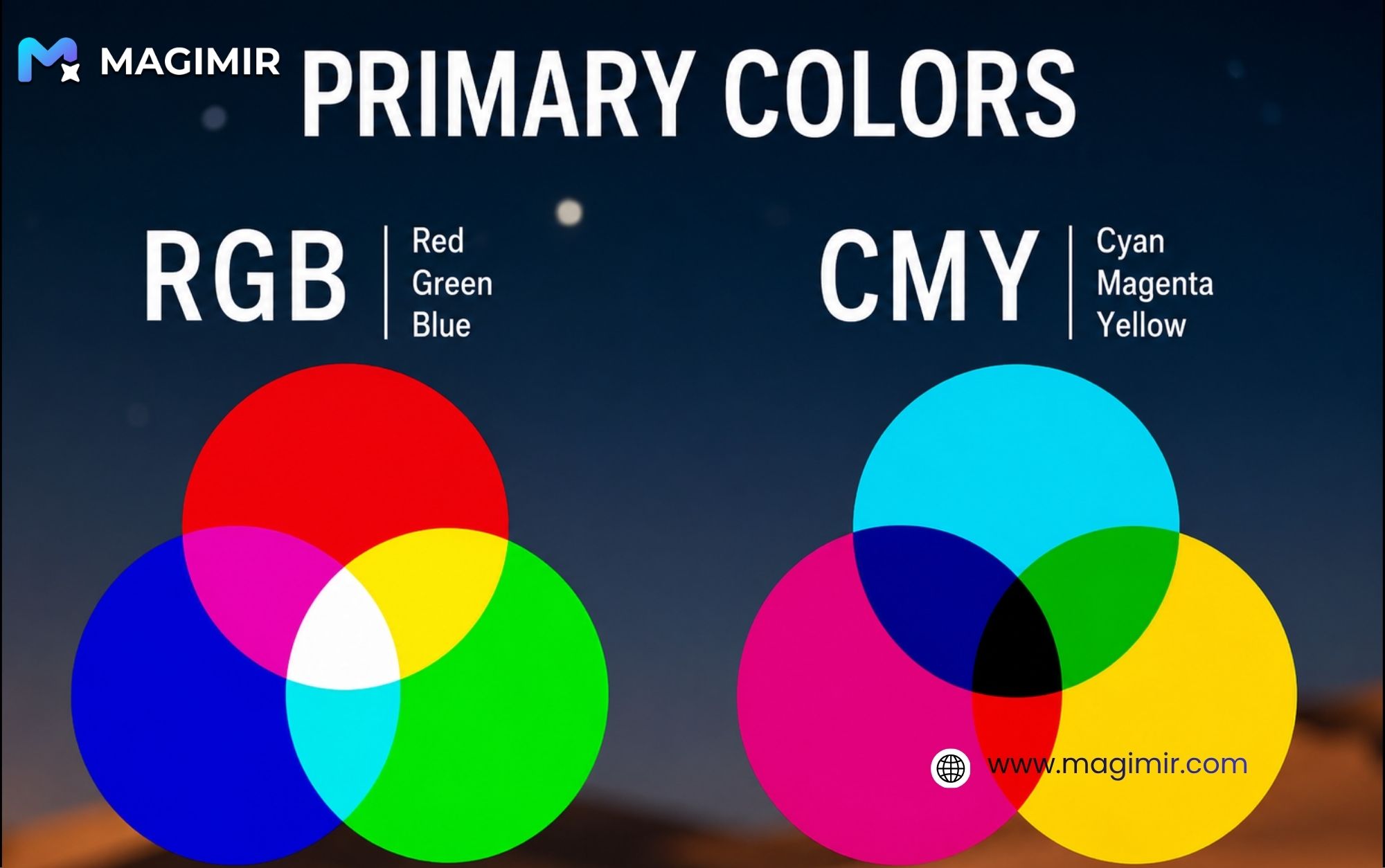
- lowering red adds cyan
- raising blue cools shadows
- lowering blue adds yellow warmth
Small moves create much cleaner color transitions than huge HSL adjustments.
For example:
👉 slightly cool shadows
👉 slightly warm highlights
Now suddenly the portrait has depth without screaming “preset.”
Magimir’s color grading system actually makes this easier because the transitions stay relatively smooth even during heavier edits. Some software starts banding immediately once curves get aggressive.
Color grading is really just controlling shadow vs highlight emotion
This is basically what color grading panels do.
A lot of cinematic portrait edits follow this pattern:
- cooler shadows
- warmer highlights
- neutral midtones
Why?
Because human eyes naturally read that as depth.
That subtle warm/cool separation creates atmosphere without making skin unnatural.
I used to think cinematic color meant dramatic teal-orange.
Now I think: good grading is usually barely noticeable
You just feel it.
Calibration tools are underrated for portraits
Most people never touch calibration.
Honestly, I ignored it for years too.
But calibration is one of the fastest ways to unify color globally.
Instead of changing one object: 👉 it shifts how the entire color system behaves
That’s why calibration feels smoother than aggressive HSL edits.
For portraits:
- shifting green slightly warmer can unify outdoor scenes
- adjusting blue primary can completely change shadow feeling
- red primary affects overall skin harmony
It’s subtle, but powerful.
And because Magimir supports layered color workflows, you can combine calibration-style adjustments with AI color matching without destroying the skin texture underneath.
That part matters a lot.
Clarity and texture are dangerous in portraits
This deserves its own section.
A lot of editors crank:
- clarity
- texture
- sharpening
…thinking it makes portraits “professional.”
Sometimes it just makes pores look violent.
Texture increases edge contrast.
Clarity increases midtone contrast.
Neither actually fixes lighting.
For portraits, I usually:
- keep texture low
- sharpen selectively
- use local contrast instead of global clarity
Especially for female portraits or beauty work.
Skin almost always looks better with softer transitions.
Noise reduction is a balancing act, not a cleanup button
One thing I learned editing RAW portraits:
Removing noise also removes life.
Especially color noise reduction.
Too much noise reduction:
- kills pores
- destroys hair detail
- makes skin plastic
So instead of fully removing grain, I usually reduce only the distracting color noise and leave some luminance texture.
Sometimes I even add grain back later.
Funny enough, slightly imperfect texture often feels more expensive than perfectly clean digital skin.
The biggest mistake in portrait color grading
Trying to make every photo look “stylized.”
Not every portrait needs:
- teal shadows
- orange skin
- crushed blacks
- dramatic fade
Some portraits just need balance.
Honestly, the best edits are usually the ones where people say: 👉 “I don’t know why this looks good, but it does.”
That’s usually a sign the grading supports the subject instead of overpowering it.
A simple portrait workflow that actually works
Here’s the order I usually follow now:
1. Basic corrections
Exposure, white balance, contrast
2. HSL cleanup
Fix skin inconsistencies first
3. Curves
Build atmosphere and depth
4. Color grading
Warm highlights / cool shadows subtly
5. Local adjustments
Face, skin, eyes, background balance
6. Final detail
Sharpening, grain, texture control
Not every image needs every step.
But this order keeps portraits natural much more consistently.
Final thoughts
Portrait color grading is less about “adding colors.”
It’s more about: controlling relationships between colors
Skin vs background Warm vs cool Soft vs contrasty Clean vs textured
Once you understand that, editing becomes much more intentional.
And honestly, tools like Magimir help because they remove a lot of repetitive technical work — especially across large portrait batches — so you can spend more energy deciding how the image should feel instead of constantly fighting sliders.
That’s usually where good portrait editing starts.Start your free trial now