
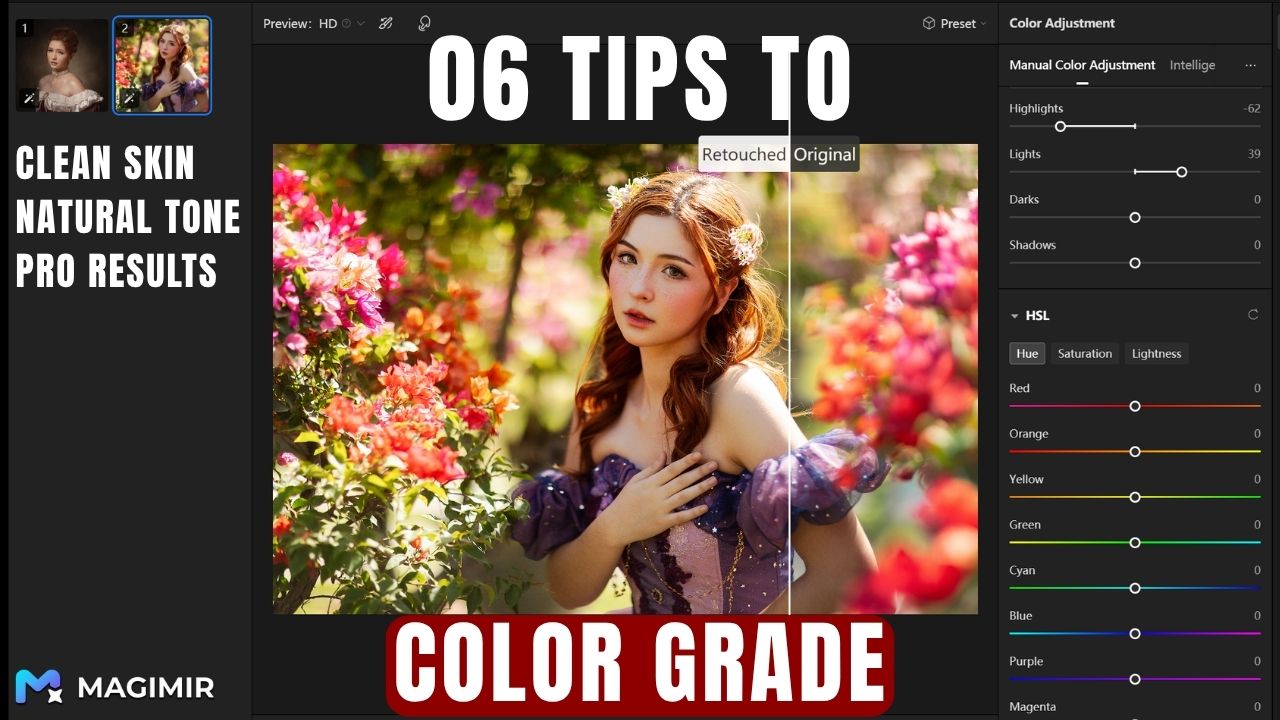
Let’s Be Honest — Most Portrait Colors Go Wrong at the Beginning
If you’ve ever edited a portrait and felt like:
“The skin looks dirty.”
“The colors feel off.”
“It just doesn’t look clean…”
It’s rarely because you don’t know enough tools.
It’s because you don’t yet have a color system.
Color grading isn’t about randomly moving sliders.
It’s about understanding what each adjustment actually controls — and more importantly, in what order to use them.
Step 1 — Start with the Foundation (Not Style)
Before curves, before color grading, before anything creative—
You fix the foundation.
When you look at an image, ask three simple questions:
- Is it too warm or too cool? → adjust temperature
- Is there a color cast? → adjust tint
- Is it too bright or too dark? → adjust exposure
This is the part most people rush through.
But this is where 70% of your image quality comes from.
Then comes contrast control:
- contrast → overall difference between light and dark
- highlights → brightest areas
- shadows → darkest areas
- whites → true highlight anchor
- blacks → true shadow anchor
Here’s the key idea:
👉 A good image must have real black and real white
👉 Otherwise, it will always look “flat” or “gray”
In Magimir, this stage is fast and intuitive.
You’re not guessing — you’re adjusting while seeing clean separation instantly.
Step 2 — Texture, Clarity, and “Perceived Sharpness”
Now we move into detail.
But not detail the way beginners think.
You’re not sharpening everything.
You’re shaping how the eye feels texture.
- texture → micro contrast (skin, fabric, surface detail)
- clarity → edge contrast (midtone definition)
- dehaze → removes fog, adds depth
Used correctly:
👉 The subject becomes clearer
👉 The background stays soft
👉 The image gains depth without looking harsh
Used incorrectly?
Skin becomes rough. Edges become crunchy. The image feels over-edited.
So here’s a simple rule:
👉 Add clarity to structure
👉 Not to skin
Step 3 — Curves: The Real Power Behind Professional Color
If you only learn one thing — learn curves.
Because curves are not just about brightness.
They are about control.
Basic rule:
- pull up → brighter
- pull down → darker
But the real power is in targeting zones.
You can brighten only midtones. Or darken only shadows.
Now let’s go deeper.
Curves are not just RGB.
You also have:
- Red channel
- Green channel
- Blue channel
And here’s the principle :
👉 Opposite sides are complementary colors (180° apart)
So:
- add red → reduce cyan
- add blue → reduce yellow
- add green → reduce magenta
This is how professionals fix skin tone.
Not by “adding orange” randomly— but by balancing color channels precisely.
Magimir simplifies this.
Instead of complex channel logic, you can visually adjust color balance with far less trial and error.
Step 4 — HSL: Where Skin Tone Actually Gets Clean
This is the step beginners usually misunderstand.
They think saturation fixes color.
It doesn’t.
HSL breaks color into:
- Hue (color shift)
- Saturation (intensity)
- Luminance (brightness)
Now here’s the important part:
👉 Skin tone mostly lives in orange and red
So instead of touching everything, you focus:
- orange → controls skin base
- red → controls warmth / blood tone
Typical adjustments:
- reduce orange saturation → cleaner skin
- slightly increase luminance → brighter skin
- adjust hue → fix unnatural color shifts
And one very important relationship :
👉 Saturation ↑ → brightness feels lower
👉 Brightness ↑ → saturation feels lower
So you don’t push one slider.
You balance both.
Step 5 — Color Mixer: Fixing “Dirty Color”
This is where you clean messy images.
Each color affects different parts:
- red → richness
- orange → skin
- yellow → light / warmth
- green → environment
- blue → sky / shadows
- purple / magenta → unwanted color noise
One powerful trick:
👉 Reduce purple / magenta slightly → removes dirty tones
Another:
👉 Slightly reduce orange saturation → cleaner, more premium skin
These small moves make a huge difference.
Step 6 — Color Grading: Creating Mood (Not Fixing Mistakes)
Now we enter the final stage.
Not correction.
👉 Expression.
Color grading is about splitting tone:
- shadows → cooler (blue/green)
- highlights → warmer (yellow/orange)
- midtones → natural
This creates depth.
It creates emotion.
It creates that subtle “cinematic feel.”
And here’s the key idea:
👉 Don’t color everything
👉 Let highlights and shadows shift differently
That’s what makes the image feel alive.
Why Most People Struggle with Color Grading
Not because it’s hard.
But because they do everything at once.
Real workflow is:
- Fix exposure
- Fix contrast
- Fix color balance
- Clean with HSL
- Shape with curves
- Style with grading
If you skip steps,
you’ll keep “fixing mistakes” later.
Where Magimir Changes Everything
Traditional tools make you think technically.
Magimir lets you think visually.
Instead of:
- guessing color channels
- overusing saturation
- fixing mistakes repeatedly
You can:
- match tones instantly
- keep skin natural
- apply consistent color across hundreds of images
Which is exactly what most photographers actually need:
👉 Speed
👉 Consistency
👉 Clean results
Final Thought
Color grading isn’t about making images look “better.”
It’s about making them feel right.
Clean skin. Balanced light. Controlled color.
Once you understand the system,
you stop chasing presets.
And you start creating your own look.Start your free trial now